The Full Twiss Toolkit: How Every Feature Works Together to Save You Hours
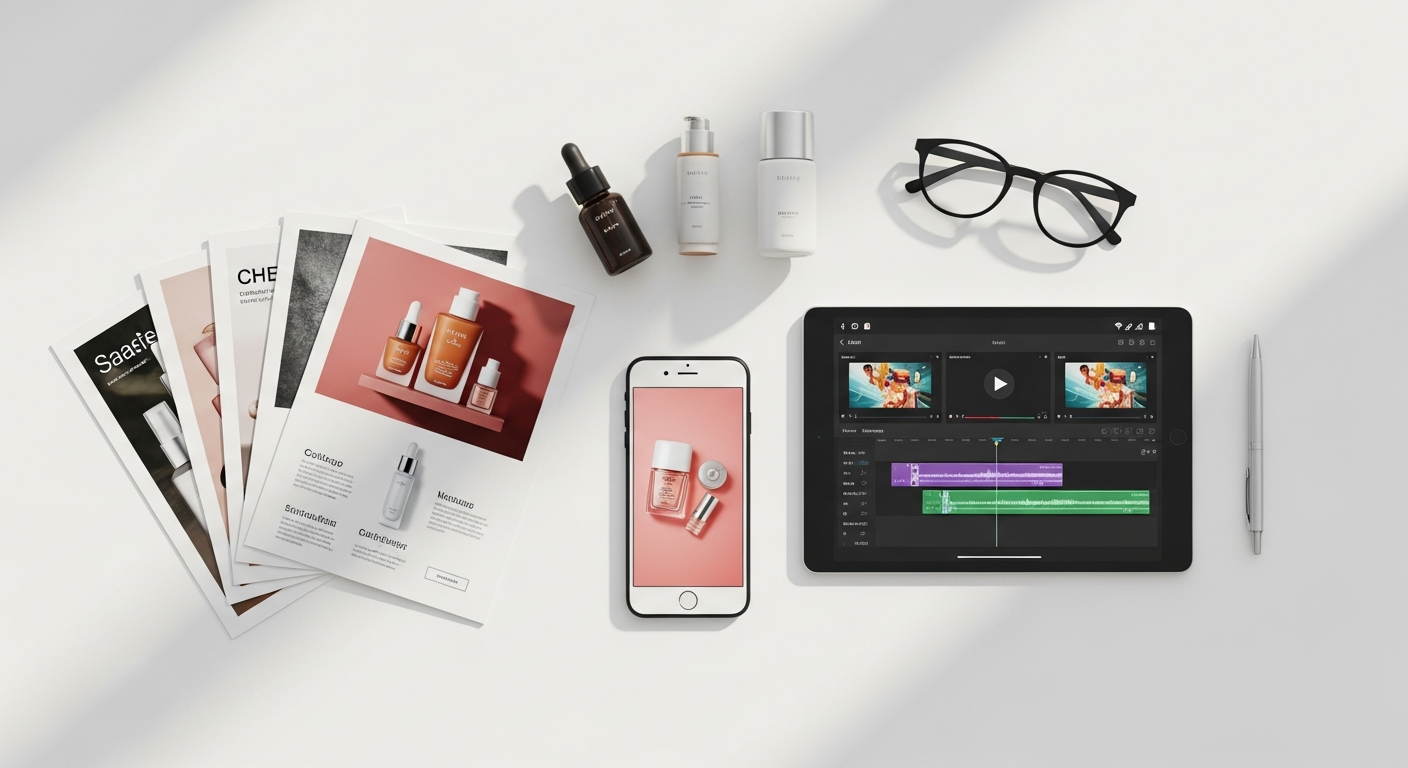
Twiss is described as an AI image platform, but if you have only used it to generate product images, you have seen maybe a third of what it does.
There are tools for fixing photos, resizing content for every platform, building promo videos, editing images in Canva, and now creating professional print materials. Every one of these tools connects to the others. Understanding how they fit together is what changes content creation from a chore into a proper workflow.
Here is the full picture.
Step One: Generate Your Images
Everything starts on the Create page. You upload a product photo and Twiss generates a professional, photorealistic image around it. You choose the style: lifestyle, UGC, testimonial, editorial, hero shot, and more. You choose the model type, ethnicity, pose, background, lighting, and platform.
The key thing Twiss does differently here is zoom-proof accuracy. Product details like label text, bottle shape, packaging colour, and texture are reproduced exactly. No hallucination, no simplification. If your product has a specific print on it, that print appears. If it is a certain shade of terracotta, it comes out terracotta.
This matters because most AI tools produce images that look fine at thumbnail size and fall apart when you zoom in. Twiss images hold up at full resolution.
Step Two: Fix Any Photo That Did Not Quite Work
Not every photo makes it into a campaign. Sometimes the lighting was wrong. Sometimes the background was cluttered. Sometimes you just looked tired.
Photo Refinement on the Create page handles this. Upload any photo, choose a replacement background or keep the original, adjust the skin and lighting, and get back a corrected version in about 30 seconds. It does not change your face or body. It corrects the quality of the image. Think of it as what a professional photographer would do in post-production, done by AI in one click.
Step Three: Resize Once, Use Everywhere
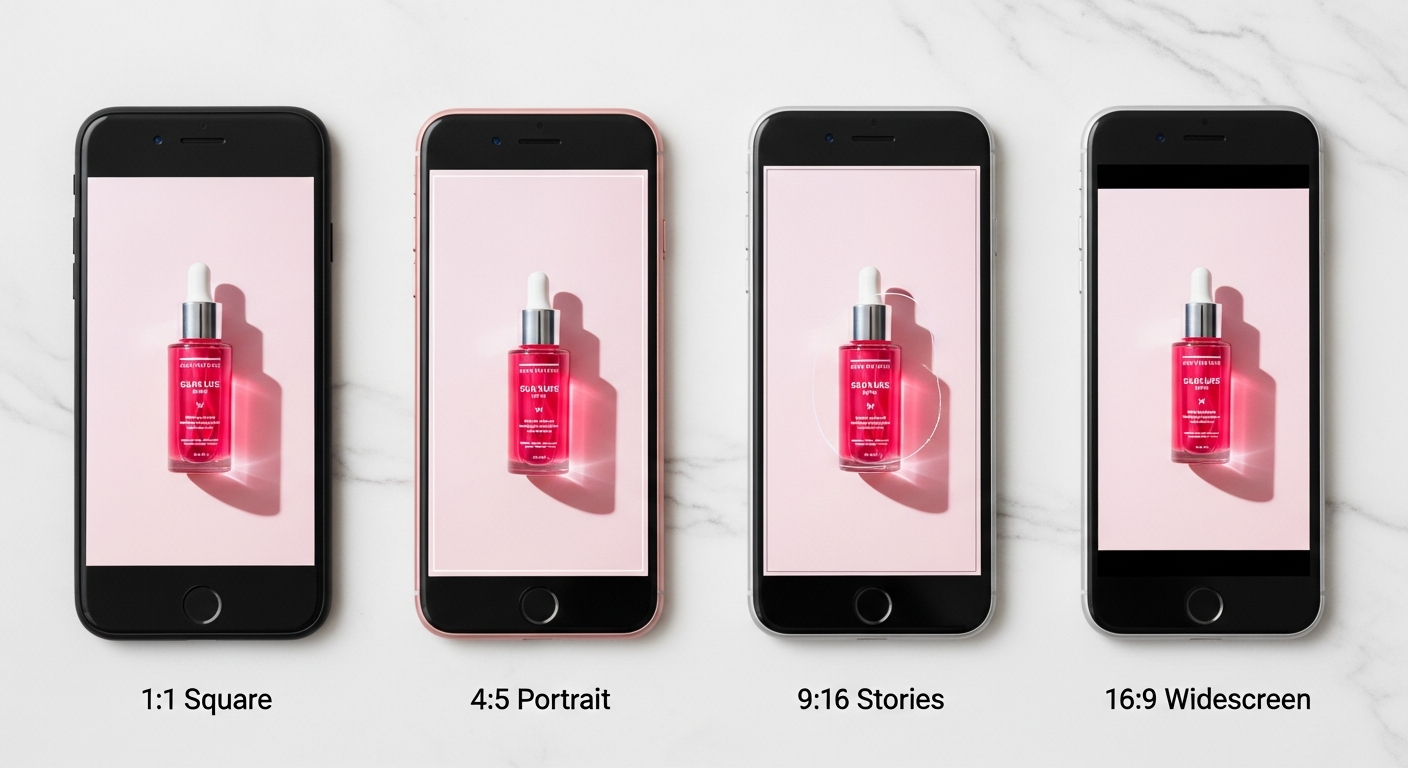
Your Instagram grid uses a 4:5 or 1:1 format. TikTok and Stories want 9:16. YouTube thumbnails and website headers want 16:9. If you are manually opening each image in Canva and cropping four different versions, you are spending hours on something that should take seconds.
Smart Resize converts any image into all four formats at once. It uses three crop modes:
- Smart Crop detects what matters in the image (the face, the product, the focal point) and keeps it centred in every format
- Centre Crop crops from the middle, best for symmetrical images
- Background Fill extends the image outward with a blurred or matched fill, so nothing gets cropped at all
One image goes in. Four platform-ready versions come out. Each can be saved directly to your gallery.
Step Four: Edit and Brand in Canva
Sometimes you want to add a headline, a price tag, a call-to-action, or your brand fonts to an image. The Canva button on any generated image opens it directly in Canva with your account already connected.
You make your edits in Canva: add text overlays, resize elements, apply your brand colours, drop in a logo. When you save in Canva, the edited version syncs straight back into your Twiss gallery. No downloading, no re-uploading, no version confusion.
This round-trip workflow means Twiss handles the AI generation and Canva handles the design finishing. You get the best of both tools without switching between them manually.
Step Five: Turn Images Into Video
Static images are powerful. But video stops the scroll in a way that images do not.
Twiss has two video tools. The first is on the Video page, where you can animate any image using Google Veo. You upload your image, choose a motion preset like a gentle pan, a zoom in, or a slow reveal, and the AI generates a short video clip from it. Useful for turning a single product image into a moving post for Stories or Reels.
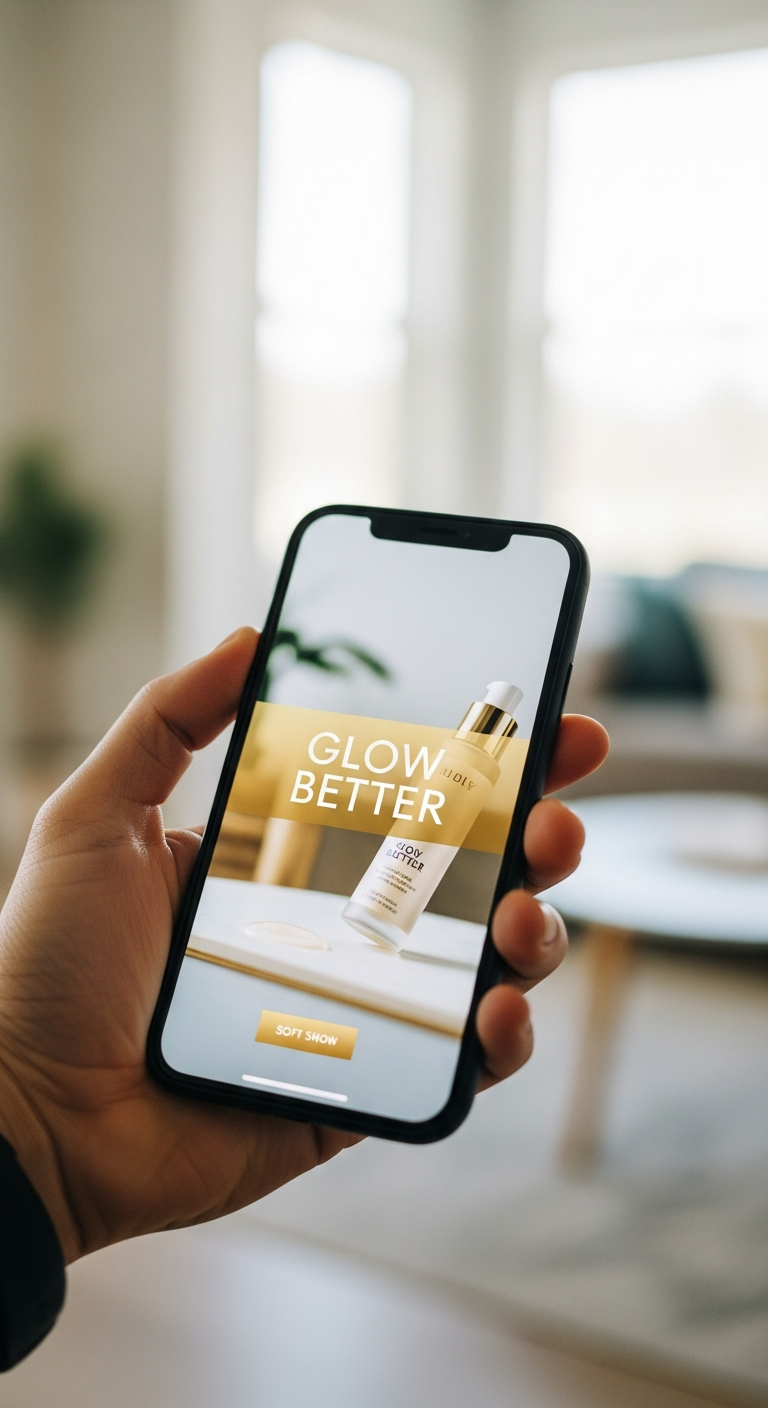
The second is the Smart Video Builder. This is for building proper multi-scene promo videos. You select several images, write a caption for each one (or let AI write them), choose transition styles and a text theme, and the builder assembles them into a finished MP4 with your brand name in the corner. You can export at 9:16 for Stories and TikTok, 1:1 for feed posts, or 16:9 for YouTube.
The videos export at broadcast quality, with smooth transitions between scenes, text overlays, and optional call-to-action buttons on each scene. It looks like something that took a video editor a day to make. It takes you about ten minutes.
Step Six: Build Your Print Materials
Print Studio takes your generated images and turns them into professional sales materials. Catalog layouts for pitching to stockists. Look books for press or buyers. Magazine-style covers for announcements. Flip books for showing a product range.
Each print gets its own shareable link, for example: twissapp.com/brochure/your-brand-summer-lookbook-a4b9c2
You can send that link to anyone and they see a properly designed, branded document in their browser. You can also download it as a PNG or a PDF, where product links are embedded and clickable. One credit per download, free to share as a link.
How It All Connects
The workflow in practice looks like this. You generate four product images on Monday. You resize them into platform formats using Smart Resize. You send the best one to Canva, add your sale copy, and it syncs back. You build a 30-second promo video using Smart Video Builder and post it to TikTok. You take the full set and build a look book in Print Studio, then send the link to a buyer.
That is a full week of content, a sales tool, and a video campaign, all from four images you generated in one session.
Every tool feeds into the next. The gallery ties everything together because every image, resize, Canva edit, and print lives in one place, ready to use again.
Where to Start
If you have not used all of these tools yet, start with the one that solves your most immediate problem.
- Generating your first professional product image: go to Create
- Fixing a photo that went wrong: use Photo Refinement on the Create page
- Formatting content for multiple platforms: use Smart Resize in the gallery
- Adding text and branding to an image: hit the Canva button on any image
- Making a promo video: go to Smart Video Builder
- Building a catalog or look book: go to Print Studio
Once you have tried one tool, the others follow naturally. They were built to work together, and once you see the workflow end to end, the question is not which tool to use. It is how quickly you can get through the whole sequence.
The content your brand needs already exists. Twiss just helps you produce it faster, and better, than doing it the old way.