How to Turn Your Brand Images into a Polished Promo Video in Minutes

Video consistently outperforms static images on every major platform. Reels, TikTok, YouTube Shorts. The algorithm favours video. Audiences engage with video longer. Brands that post video regularly grow their following faster than those that do not.
Everyone knows this. The problem has always been production. A proper brand video means storyboarding, shooting, editing, music licensing, colour grading. Even a simple 15-second promo can take a day of work and several hundred dollars if you outsource it.
The Twiss Smart Video Builder is a different approach. It takes the images you have already generated and composes them into a polished, motion-filled promo video. No editing software. No timeline. No render farm. Free to use.
How It Works
The Smart Video Builder is a four-step process.
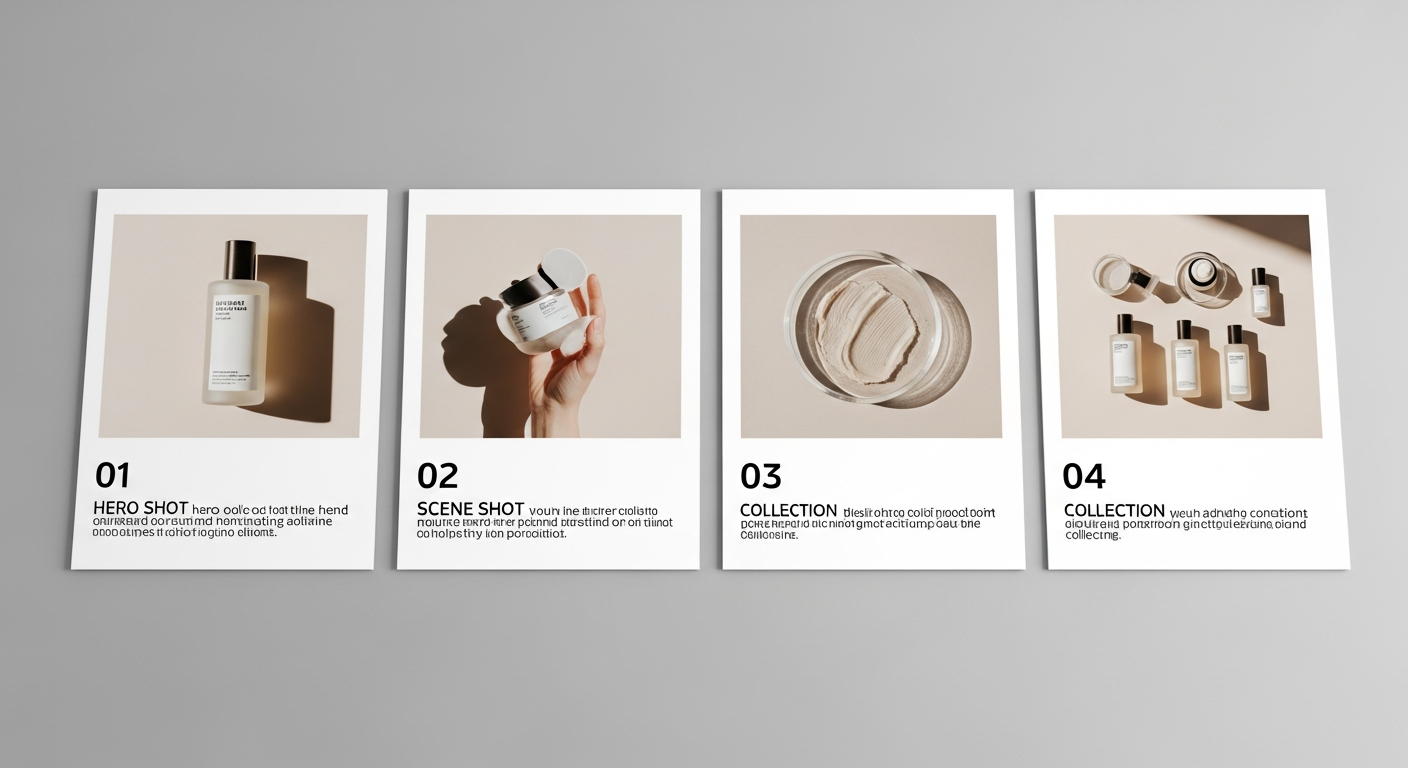
Step 1: Pick your images. Browse your Twiss gallery and select the images you want to include. You can choose between 2 and 6 images. Each image becomes a scene in the final video.
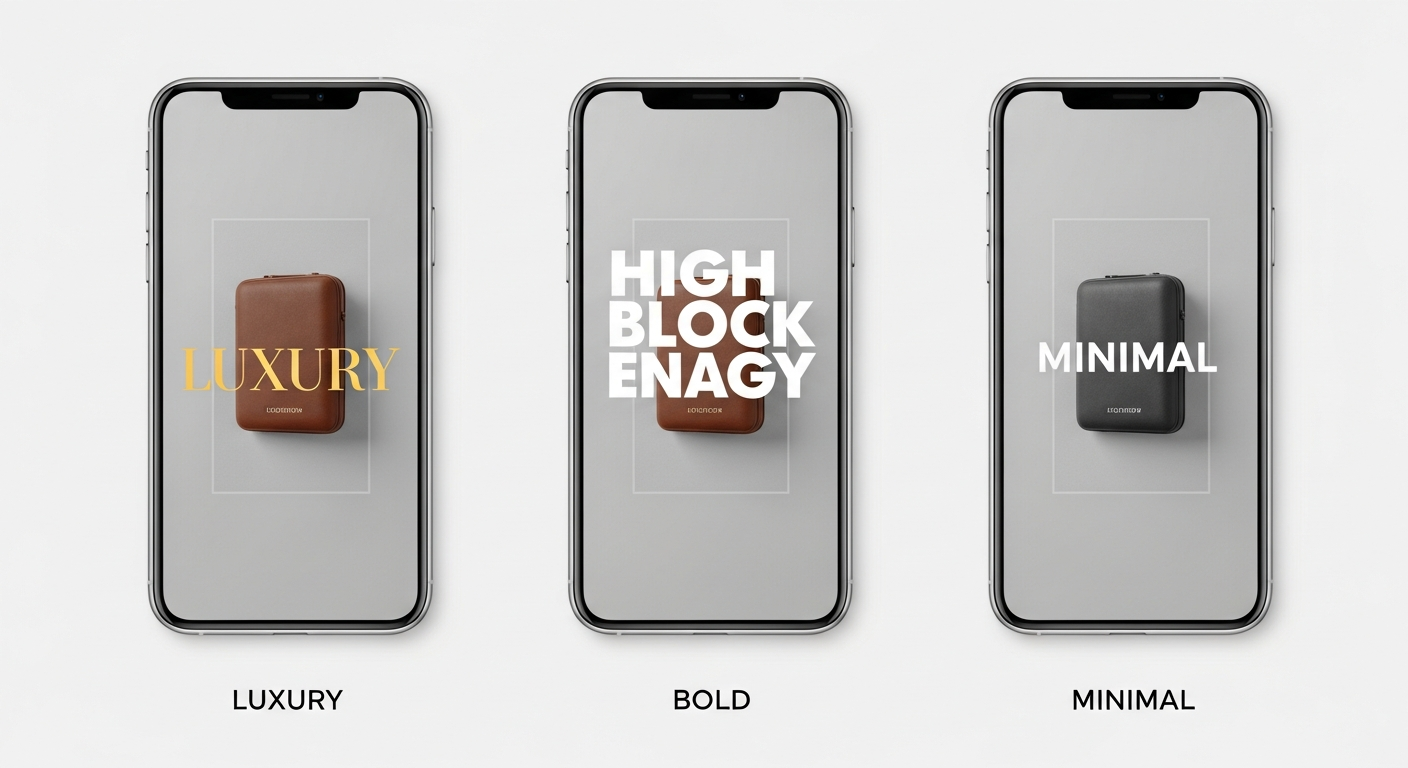
Step 2: Set your preferences. Choose your aspect ratio (9:16 for Stories and TikTok, 1:1 for square feeds, 16:9 for widescreen). Set your total video duration. Choose a style (Luxury, Bold, Minimal, Editorial, or UGC) and a motion intensity (Subtle, Medium, or Dynamic). Pick a transition type between scenes.
Step 3: Generate your scene copy. Click Generate AI Copy and the system writes scene-by-scene text for your video: a headline for each scene and supporting subtext. The copy is tuned to your chosen style and the content of your images. You can edit any line before moving on.
Step 4: Export. Hit Build and Export Video. The system composes the video server-side, adding Ken Burns-style zoom and pan motion to your images, blending scenes with the transition you chose, and overlaying your text with a clean gradient. The finished MP4 saves to your gallery and downloads to your device.
What the Output Looks Like
Each image gets the Ken Burns treatment: a slow, cinematic zoom or pan that makes static photos feel like they were filmed. The transitions between scenes are smooth: fade, slide, zoom dissolve, or a clean cut if you prefer.
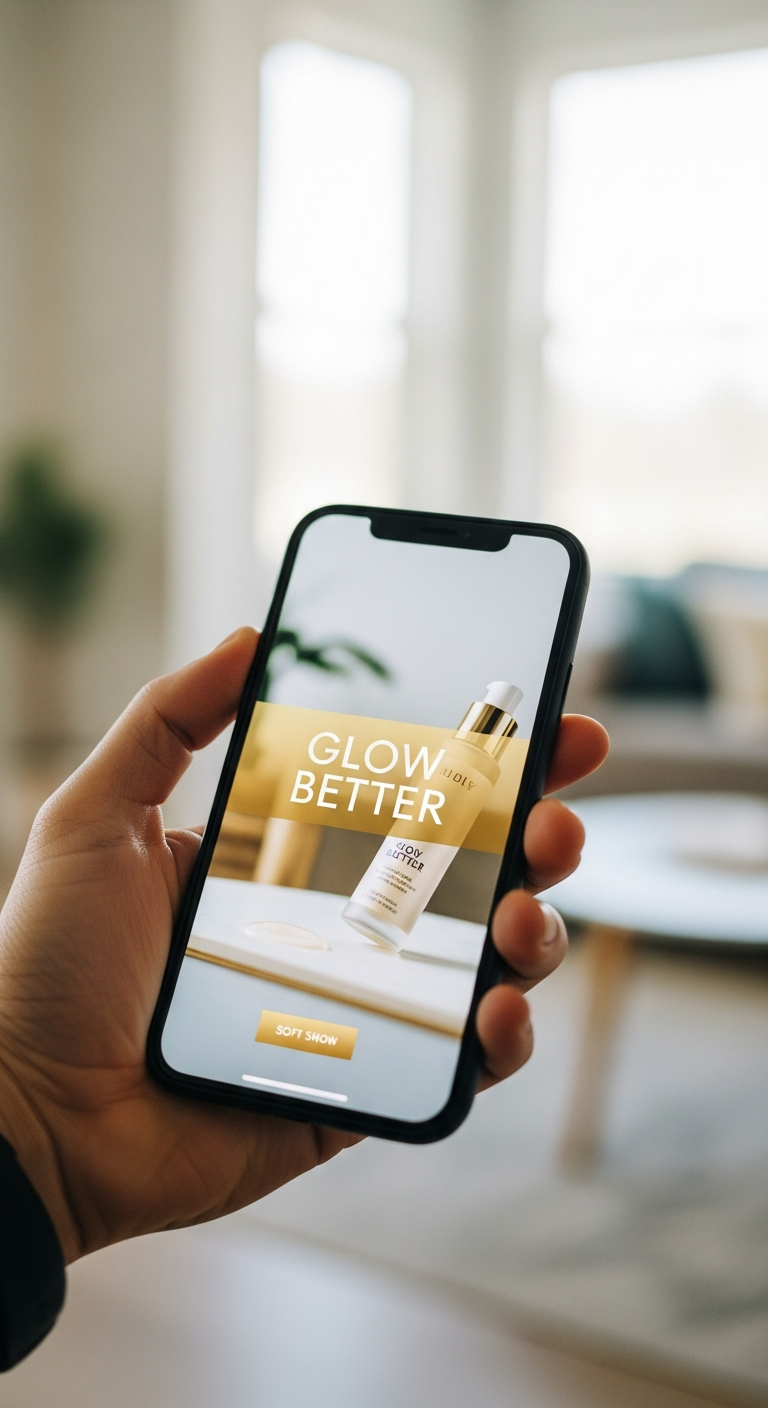
Your text appears at the bottom of each scene on a gradient overlay, styled to match the video's overall look. Luxury style uses warm gold tones. Bold style uses high-contrast white with punchy typesetting. UGC style keeps it casual and approachable.
The output is a proper MP4 file, encoded for web and mobile playback. No watermark. Ready to post.
What Kinds of Videos Work Best
The Video Builder is strongest for three types of content:
Product showcase videos. Three or four product images in sequence, each highlighting a different angle or benefit. Add a hook line on the first scene, a key benefit on the second, a lifestyle image for the third, and a CTA on the last.
Collection launches. If you are releasing a new range, show several products in one video. Faster to produce than a shoot, more dynamic than a grid post.
Lifestyle storytelling. Mix product shots with lifestyle images for a video that feels editorial rather than commercial. Works particularly well on TikTok and Reels.
The Cost
Using the Smart Video Builder is completely free. You have already paid credits to generate your images. Composing them into a video costs nothing additional.
The only thing it costs is the two minutes it takes to go through the four steps.
Go to Video Builder in the Twiss navigation to get started. Your gallery images load automatically in Step 1.