Smart Resize: Stop Manually Formatting Your Content for Every Platform

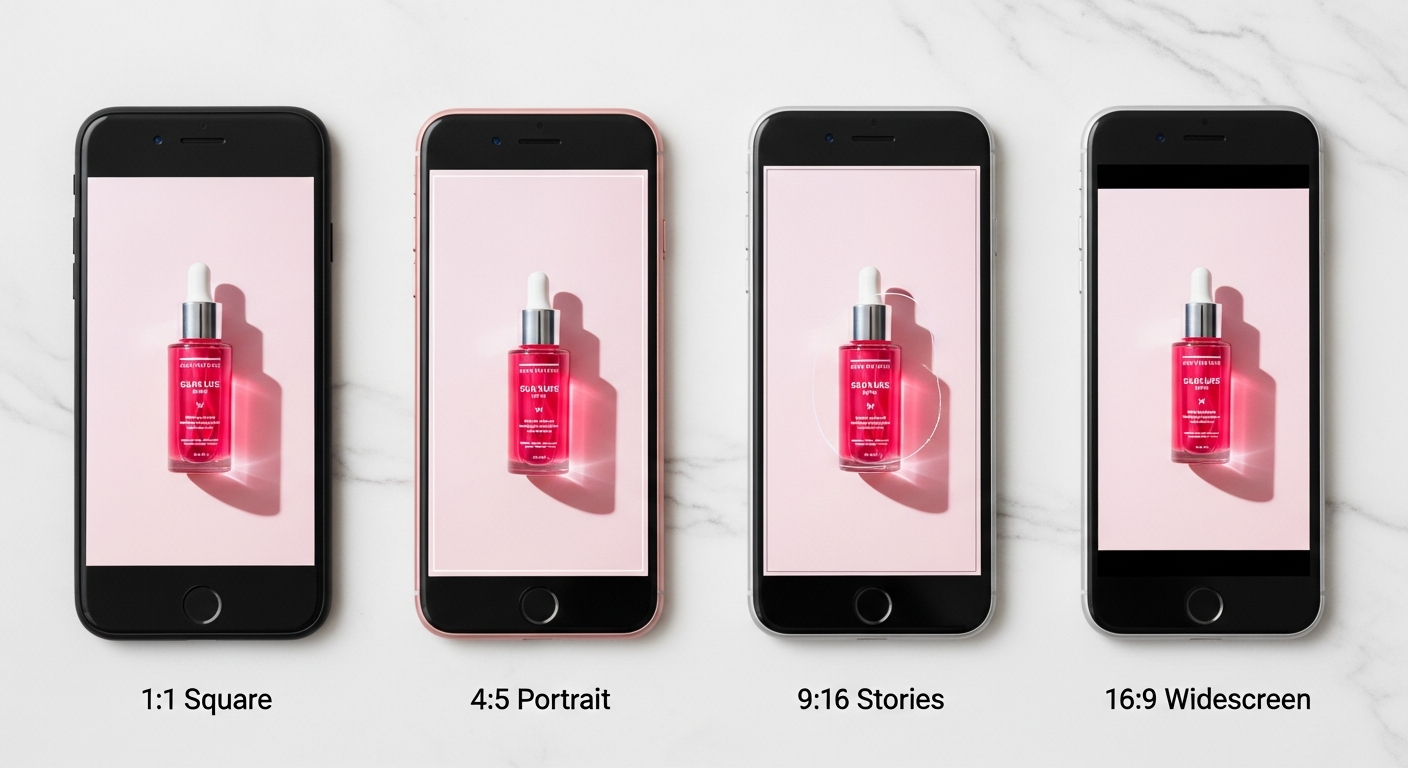
Every social media platform has its own opinion about what shape your content should be. Instagram Feed wants a square or a 4:5 portrait. Stories and TikTok want a 9:16 vertical. YouTube thumbnails and ads want 16:9 widescreen. LinkedIn has its own preferences.
If you have been creating content for more than a few months, you already know the workflow. Generate or shoot one image. Open it in Canva or Photoshop. Crop to the first format. Export. Reopen. Crop to the second format. Export again. Repeat for each platform. By the time you have four versions, you have spent twenty minutes on something that should take ten seconds.
Smart Resize, built into Twiss, does those four versions in one click.

What Smart Resize Actually Does
When you click the resize icon on any image in Twiss, Smart Resize generates four versions simultaneously:
Square (1:1) at 1080x1080. The standard Instagram Feed format. Works on Facebook, LinkedIn, and most feed placements.
Portrait (4:5) at 1080x1350. Takes up more vertical space in the feed. Studies consistently show 4:5 outperforms square for engagement because it dominates more of the screen.
Vertical (9:16) at 1080x1920. Full-screen Stories, Reels, TikTok, and YouTube Shorts format. This is where most platform attention is shifting.
Widescreen (16:9) at 1920x1080. YouTube thumbnails, Twitter header cards, LinkedIn cover images, and display ads.
All four appear as live previews. You download the ones you need or save them all directly to your Twiss gallery.
Three Crop Modes for Different Situations
A flat crop does not work for every image. If your product is centred, simple center crop is fine. But if the subject is off to the side, or if the aspect ratio change is dramatic, you need something smarter.
Smart Resize offers three modes:
Smart Crop uses attention-based cropping. The algorithm analyses your image to find the most visually important area (faces, the product, high-contrast regions) and keeps that in frame as the crop is applied. It works especially well for lifestyle images with models.
Center Crop takes the middle of the image and crops outward symmetrically. Reliable for product shots, flat lays, and anything where the subject is already centred.
Background Fill takes a different approach entirely. Instead of cropping the image, it extends the canvas and fills the empty space with a blurred, colour-matched version of the original background. The result looks like the image was always that shape. This is the best option when cropping would cut off important parts of the image.
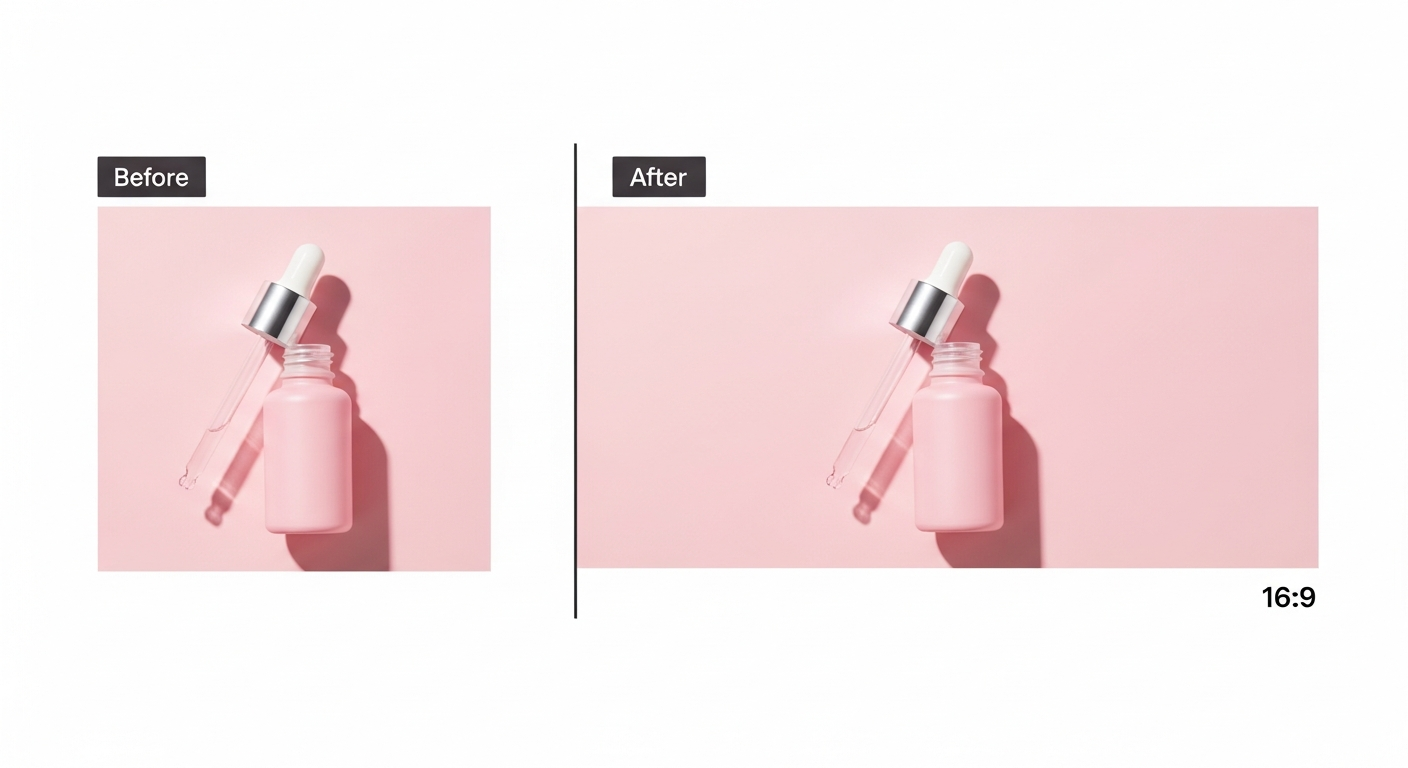
The Workflow With Smart Resize
Generate your image in Twiss as normal. When the result appears in the preview canvas, click the resize icon. The Smart Resize panel opens. Choose your crop mode. All four format previews appear instantly.
For each format, you can download directly to your device, open in Canva for further editing, or save to your Twiss gallery. The gallery keeps your originals and resized versions organised together.
A typical batch for one image takes under a minute. You leave with four production-ready files instead of one.
Why This Matters More Than It Sounds
The friction of formatting is one of the main reasons brands end up under-posting. You have the content, but the extra steps eat into whatever time you had set aside. So you post one version and call it done.
With Smart Resize, posting to four platforms costs the same effort as posting to one. That changes the economics of your content completely. The image you already generated and paid for goes four times further.
If you are batch-generating a month of content, Smart Resize at the end of that session means each image you created covers every platform you are active on.
Try it now at twissapp.com/resize. Upload any image, pick your crop mode, and download all four platform sizes in under a minute.