From Camera Shot to Sales Ready: The Twiss + Canva Workflow
What if you could turn a simple phone photo into scroll-stopping, sales-ready content without hiring a photographer, renting a studio, or spending hours editing? That is exactly what the Twiss + Canva workflow delivers.
In this post, we walk through a real example: a light blue "Future" tote bag, photographed casually on a table, transformed into a professional lifestyle image with AI, and then polished in Canva with text overlays and branding, all in under five minutes.
Step 1: Snap a Quick Photo
You don't need professional equipment. A well-lit phone photo of your product is all it takes. In this example, the bag was shot indoors with natural light. No backdrop, no styling, just the product on a surface.
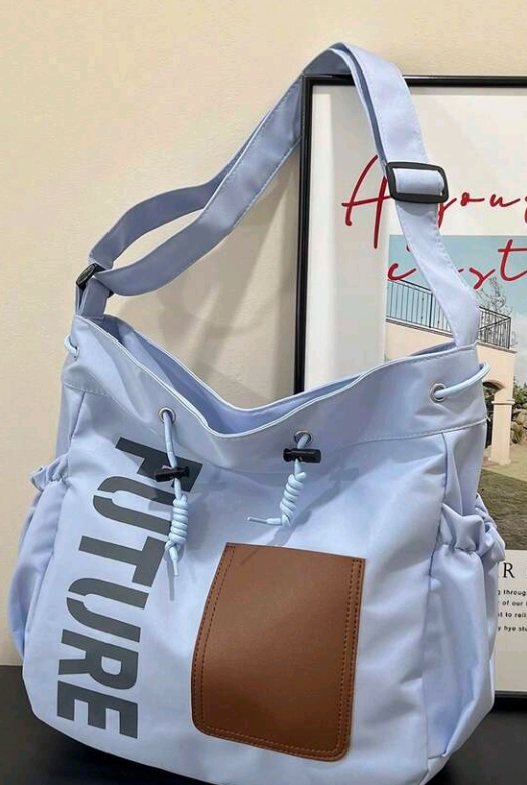
The key is clarity: make sure the product is in focus and the details are visible. Twiss handles the rest.
Step 2: Generate with Twiss
Upload your photo to Twiss, choose a style preset (in this case, "Lifestyle") and select a platform like Instagram. Twiss uses AI to understand your product and place it naturally on a model in a real-world setting.
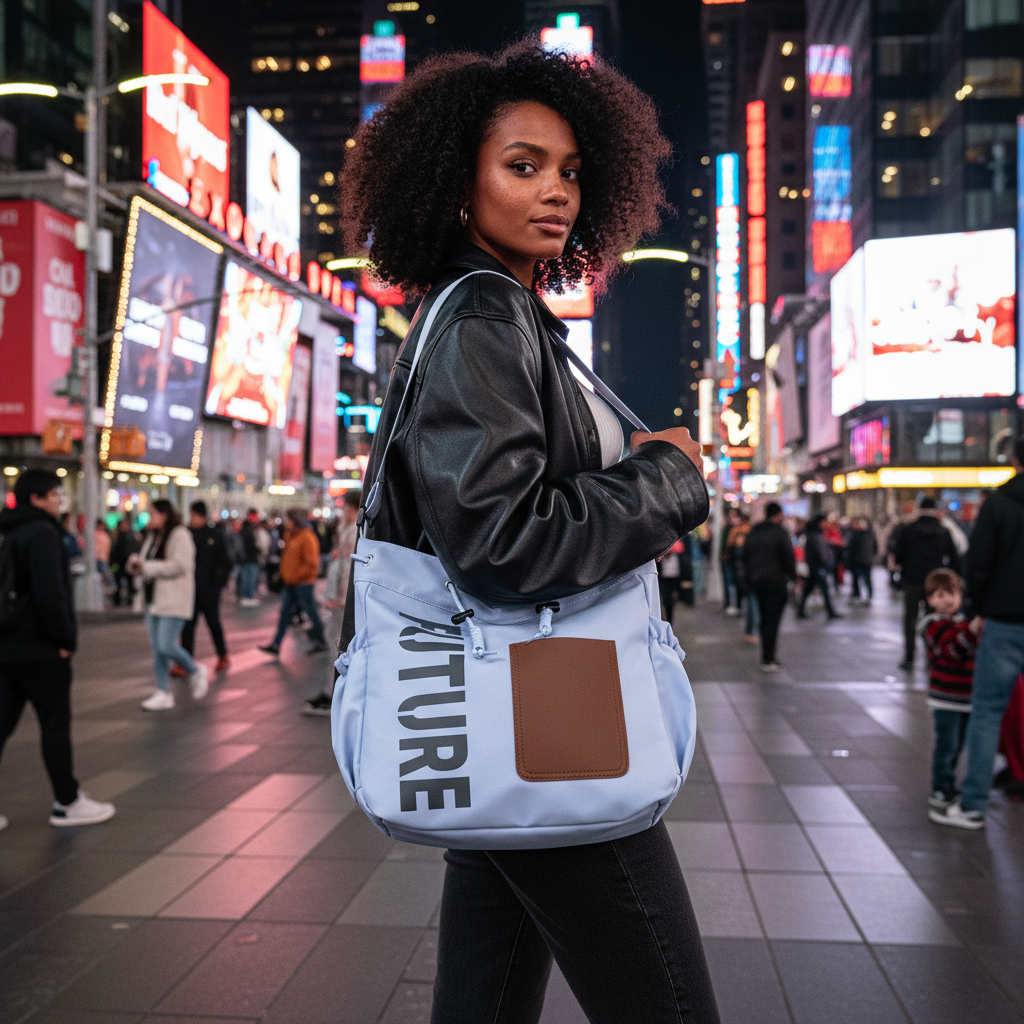
Within seconds, the casual table shot becomes a striking lifestyle image: a model confidently carrying the tote bag through Times Square at night, city lights glowing in the background. The product details, including the "Future" text, the brown leather pocket, and the drawstring, are all preserved faithfully.
No photographer. No model casting. No location scouting. Just AI doing the heavy lifting.
Step 3: Refine in Canva
Great content needs great presentation. Twiss integrates directly with Canva, so you can send your generated image straight into Canva's editor with one click.
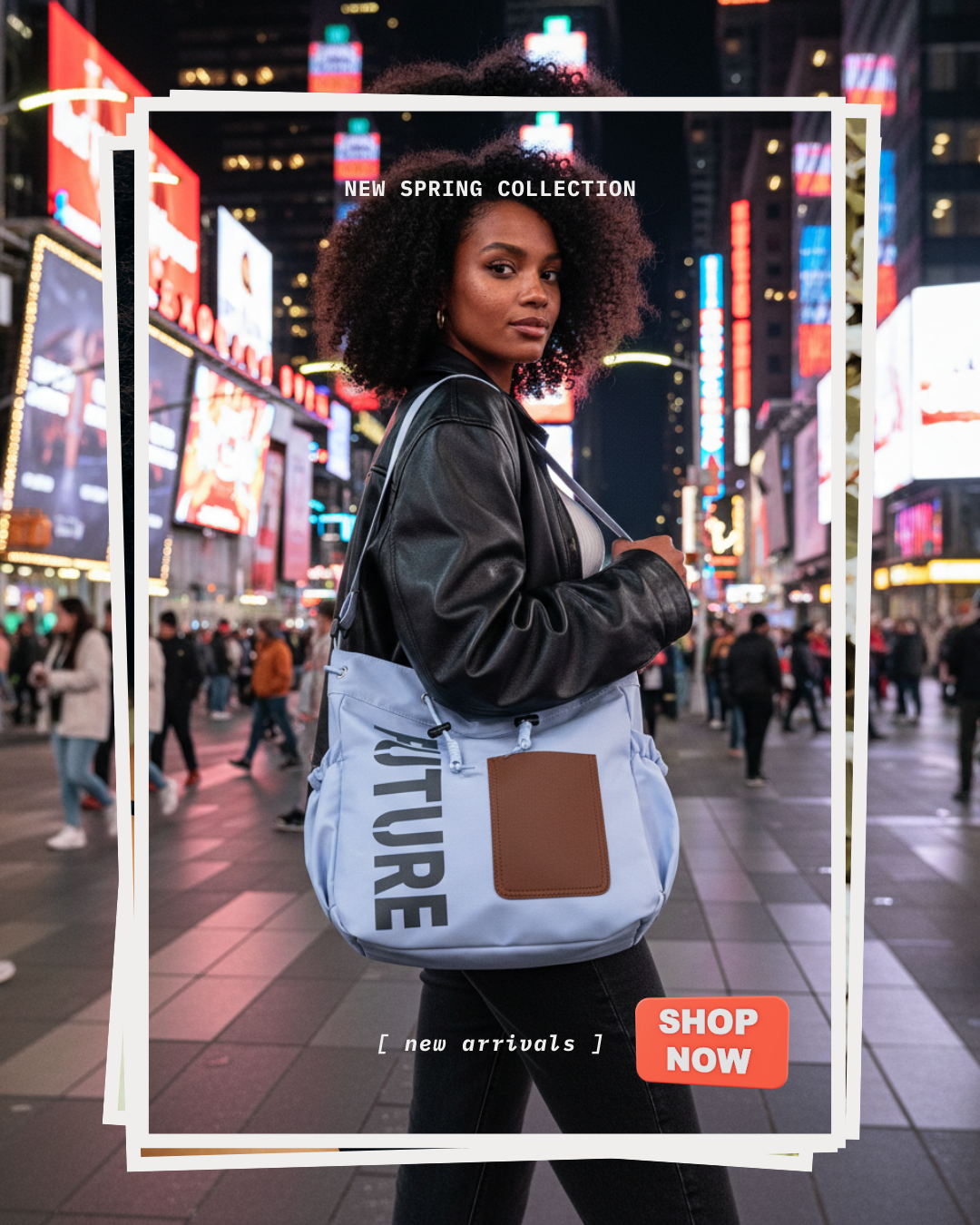
In Canva, you can add text overlays like "New Spring Collection" and "Shop Now" buttons, apply frames and borders, adjust colours to match your brand, and create platform-specific formats. The round-trip sync means your Canva edits come right back into your Twiss gallery, so everything stays organised in one place.
The Complete Transformation
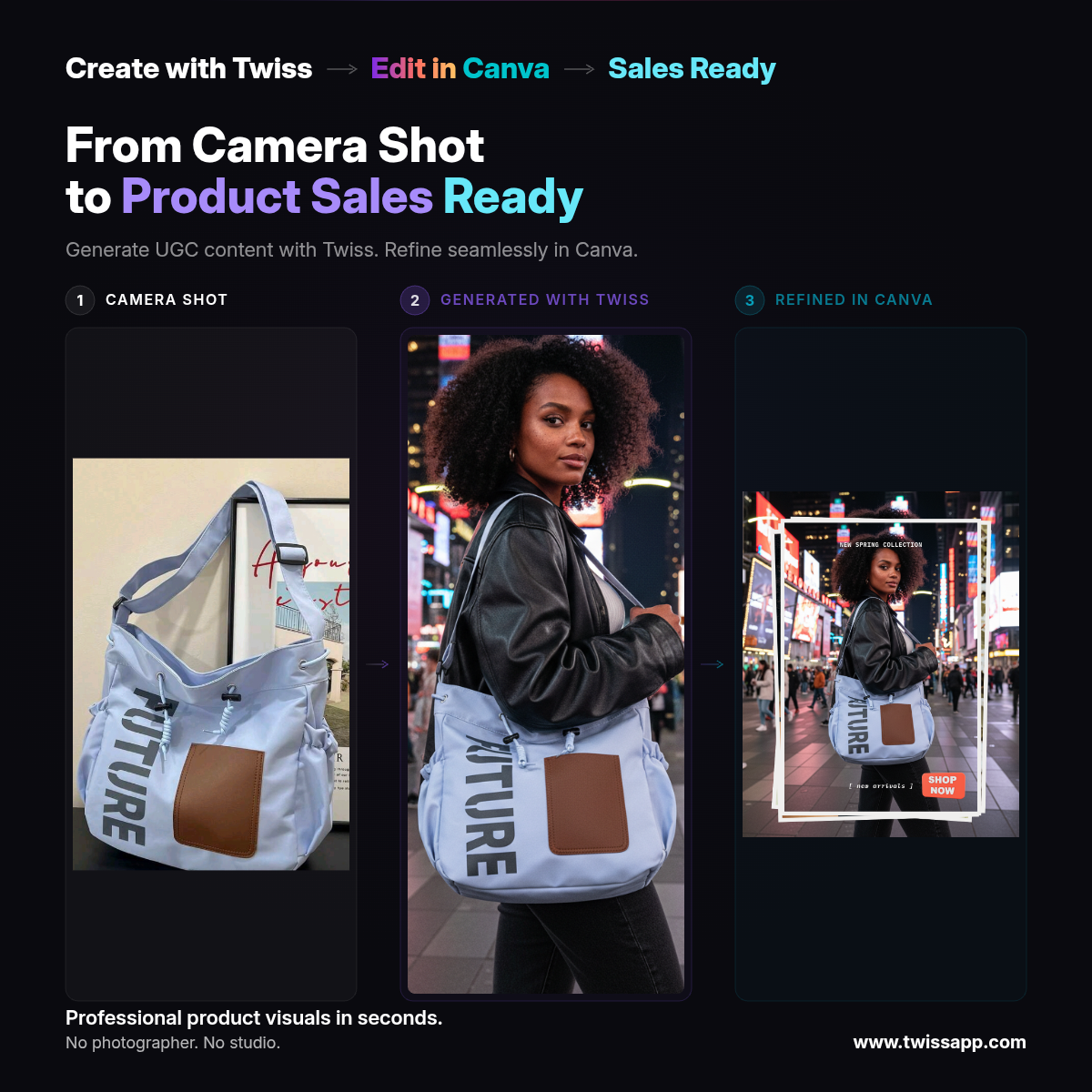
Here is the full journey, side by side:

From a casual camera shot to a polished, sales-ready post, the kind of content that stops thumbs mid-scroll.
Why This Workflow Works
Speed: The entire process takes under five minutes. Traditional product shoots take days to plan, shoot, and edit.
Cost: No studio rental, no photographer fees, no model agency costs. Just your product, your phone, and Twiss.
Quality: AI generates photorealistic lifestyle imagery that looks like it came from a professional production.
Flexibility: Need different platforms? Different styles? Different models? Generate as many variations as you need.
Control: Canva gives you full creative control over the final presentation: text, branding, layout, everything.
Who Is This For?
This workflow is perfect for e-commerce sellers who need fresh product content regularly, small brands without a big marketing budget, social media managers juggling multiple platforms, dropshippers who only have supplier photos to work with, and anyone who wants professional product visuals without the professional price tag.
Get Started
Ready to try it yourself? Head to Twiss, upload a product photo, and see the transformation in seconds. Then polish it in Canva and watch your content stand out.
The future of product content is here, and it starts with a simple phone photo.